
How to Get WhatsApp API Access in India, Step by Step
A clear checklist for getting a number on the WhatsApp Cloud API: business portfolio, number choice, verification and the first test message.
By UnboxChat Team
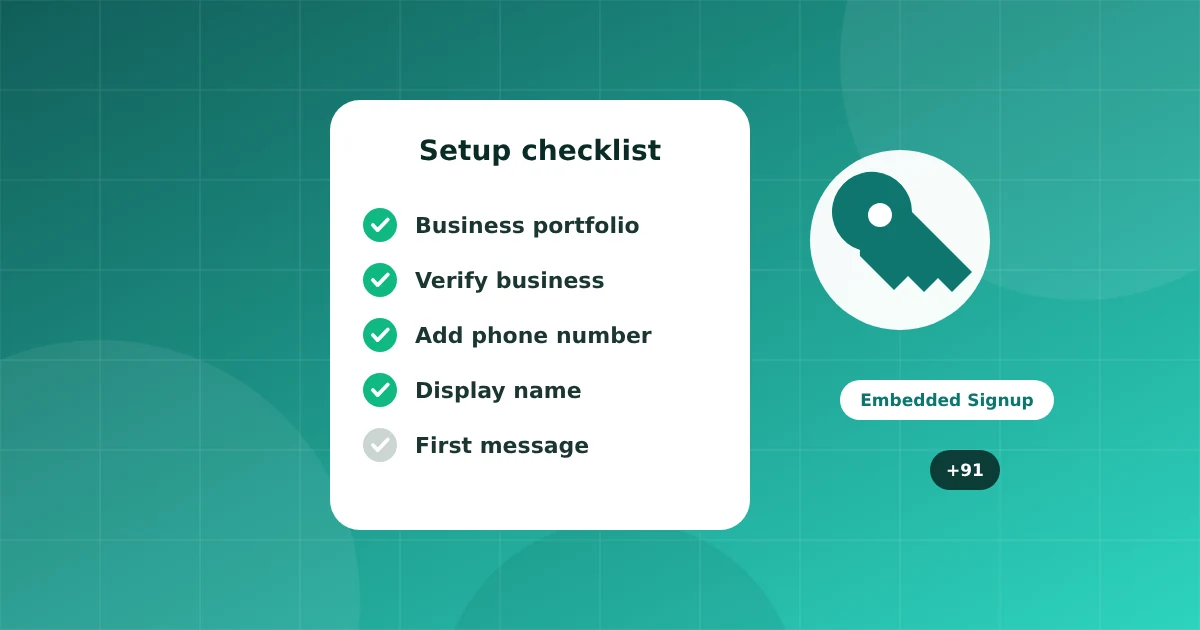
Getting started with the WhatsApp Cloud API is easier than it used to be. You no longer wait weeks for a partner to approve you. Still, a few steps trip people up. Here is the order that works.
1. Prepare your business details
Have your legal business name, address, website and a business email ready. A website or social page that matches your business name helps Meta verify you faster.
2. Create or check your Meta business portfolio
Go to Meta Business Suite and open your business portfolio, which was earlier called Business Manager. Make sure you are an admin. If you plan to message at higher volumes, start business verification early, because it can take a few days.
3. Choose the right phone number
The number must be able to receive a call or SMS for the verification code. It should not be active on a regular WhatsApp or WhatsApp Business app account. If it is, delete that account first or use a fresh number.
Landline numbers work too, using the voice call option.
4. Connect through a platform
With a provider such as UnboxChat you use Embedded Signup: click connect, sign in with Facebook, pick your business portfolio, add the number, and approve permissions. The platform receives the access it needs and shows your number in the panel.
5. Set a display name
Your display name must follow Meta's rules and match your brand. Names that are generic, or that use only a city or a category, are often rejected.
6. Send your first message
Inside the panel, add your own number as a contact and send a test. Messages to a new contact must start with an approved template. After the customer replies, you can send free form messages for 24 hours. Read the 24 hour window explained to see how that works.
7. Create templates and add opt ins
Submit a few useful templates, such as a welcome message and an order update. Also decide where you will collect opt in: a website form, a checkout checkbox, or a Click to WhatsApp ad.
Common problems
- Number already registered: remove it from the old app first
- Display name rejected: use your real brand name and add a matching website
- Payment method missing: add one in the Meta billing settings so messages can be sent
Once your number shows as connected, you are ready to work with your team in the inbox.